Download Results with the Original Folder Structure
It’s now possible to download results for a specific order with the same folder structure that was used during the upload.
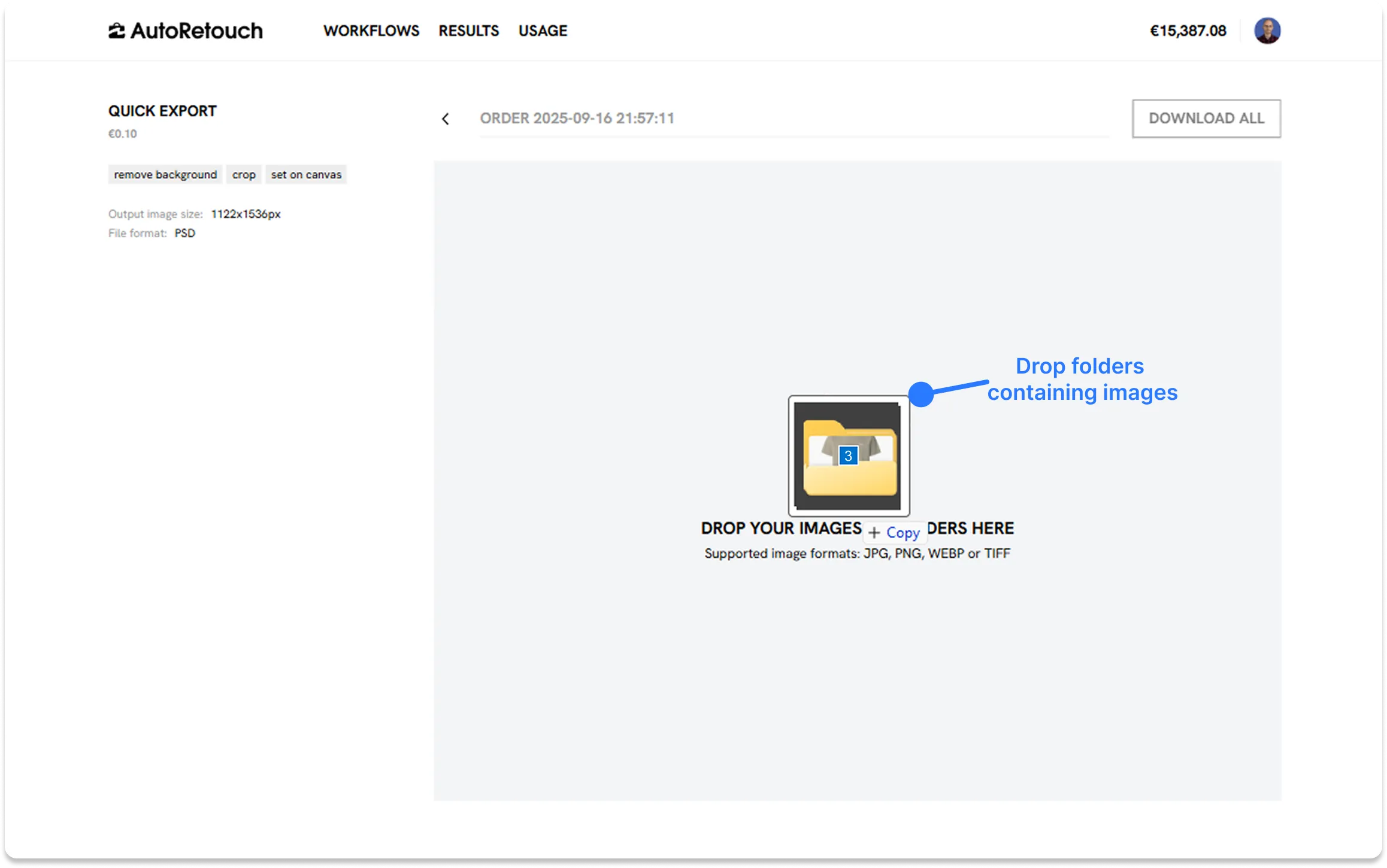
To use this feature, drag and drop multiple image folders in the upload area and proceed as usual to process the order. Once all the results are available, you’ll be able to download a zip file either with a flat structure (which is the previous behavior) or the original structure (based on how the files and folders were organized when you uploaded them).
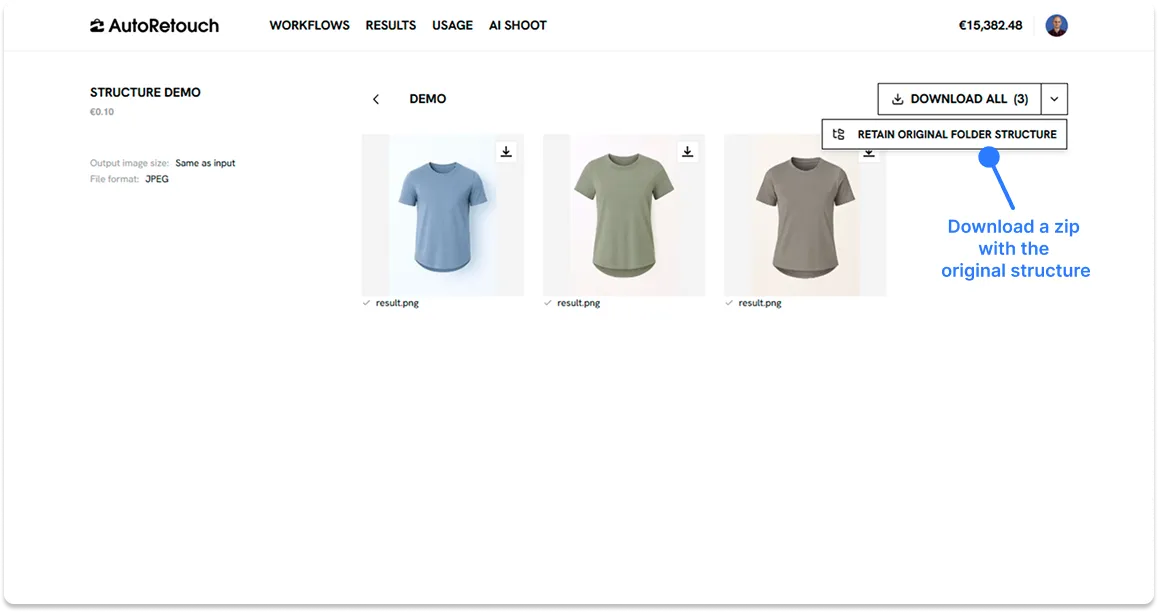
If the upload was performed by drag and drop, the download all button will give the option to choose the desired zip structure:
For instance, if you uploaded image folders with this structure, your zip will return results with the same one:
sku_images/├── SKU1000/│ ├── SKU1000_img1.jpg│ └── SKU1000_img2.jpg├── SKU1001/│ ├── SKU1001_img1.jpg│ └── SKU1001_img2.jpg├── SKU1002/│ ├── SKU1002_img1.jpg│ └── SKU1002_img2.jpg└── SKU1003/ ├── SKU1003_img1.jpg └── SKU1003_img2.jpgNotes:
- This feature does not create distinct orders and isn’t visible on the interface when you perform the upload (i.e., uploaded files aren’t grouped by folder on the web app).
- This feature only works if you have uploaded your files and folders by dragging and dropping them in the upload area. If you click to upload (and select files), the folder structure will not be kept.
- The file structure is only available when the zip is downloaded using the download all button available at the order level.