Process Images
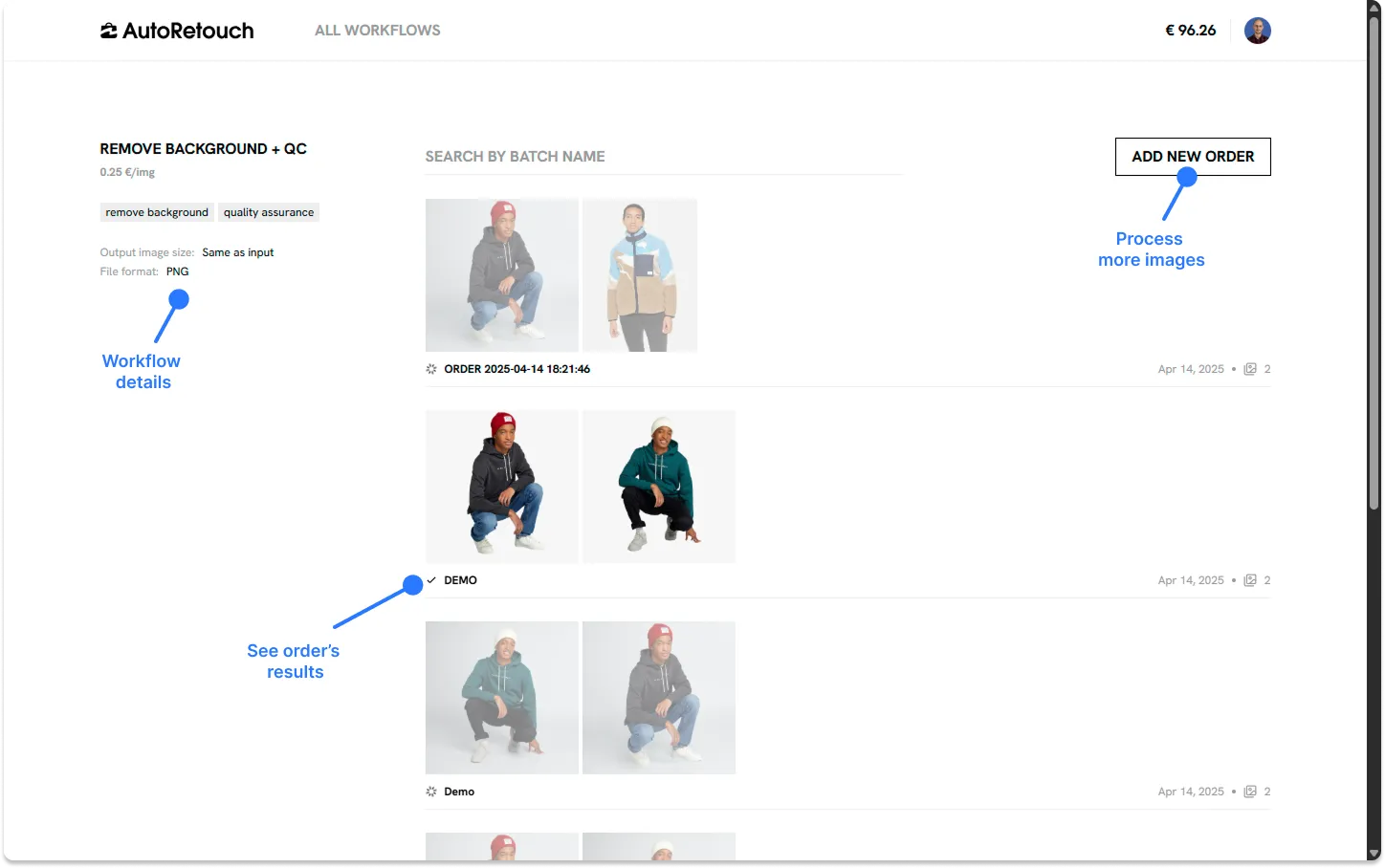
Once you have identified a workflow you’d like to use on the list of workflows, you can process images through it by clicking on the “Create new order” button. This action is also available if you’re already browsing a specific workflow.
To process images:
- Add a custom order name if you wish; otherwise it will default to the current date and time (this is the same as batch name)
- Upload the images you’d like to process (you can upload entire folders, and even multiple folders)
- Click “Process order” once you’re ready
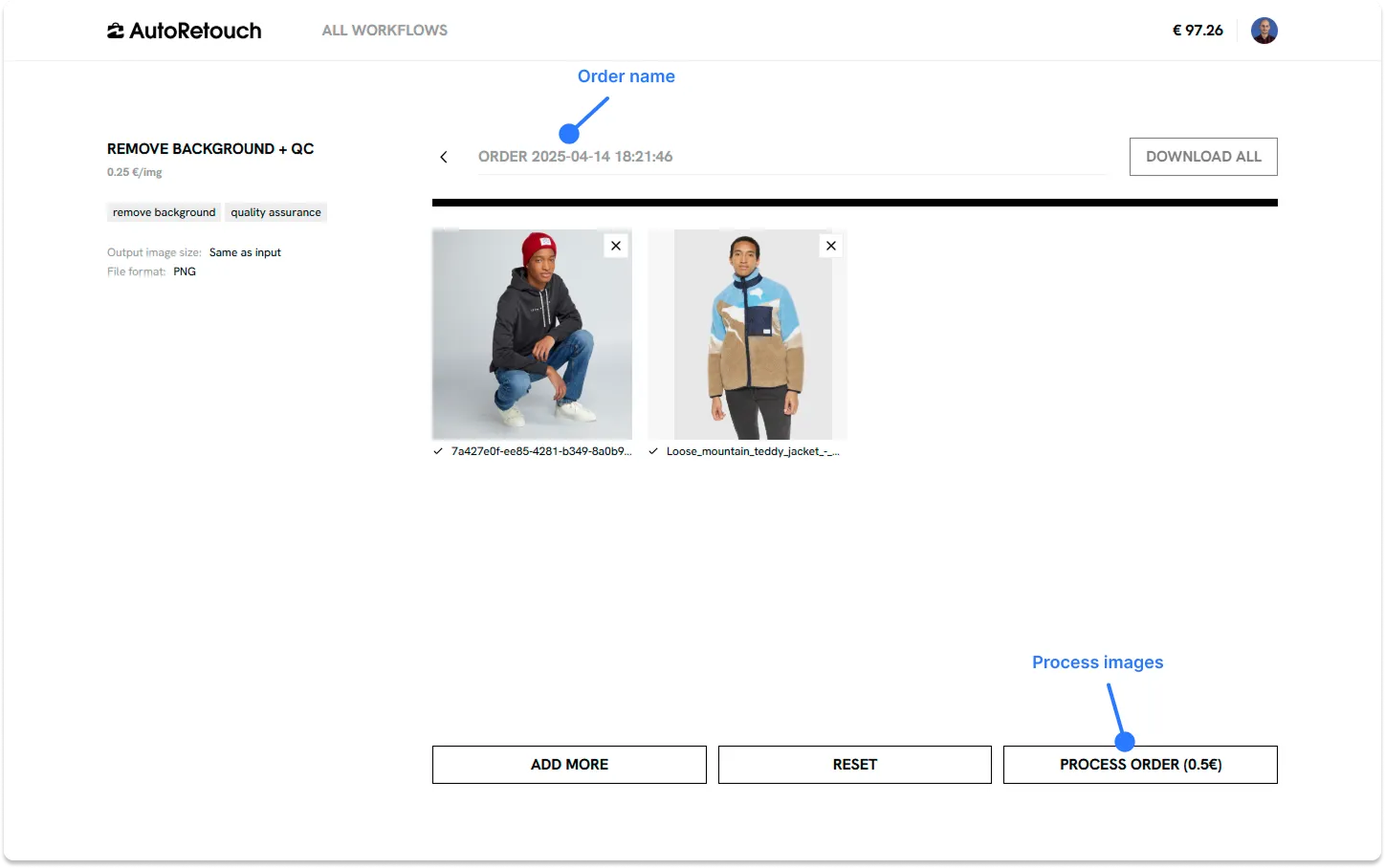
After clicking “Process order”, your account will be charged the quoted amount, and your images will be processed.
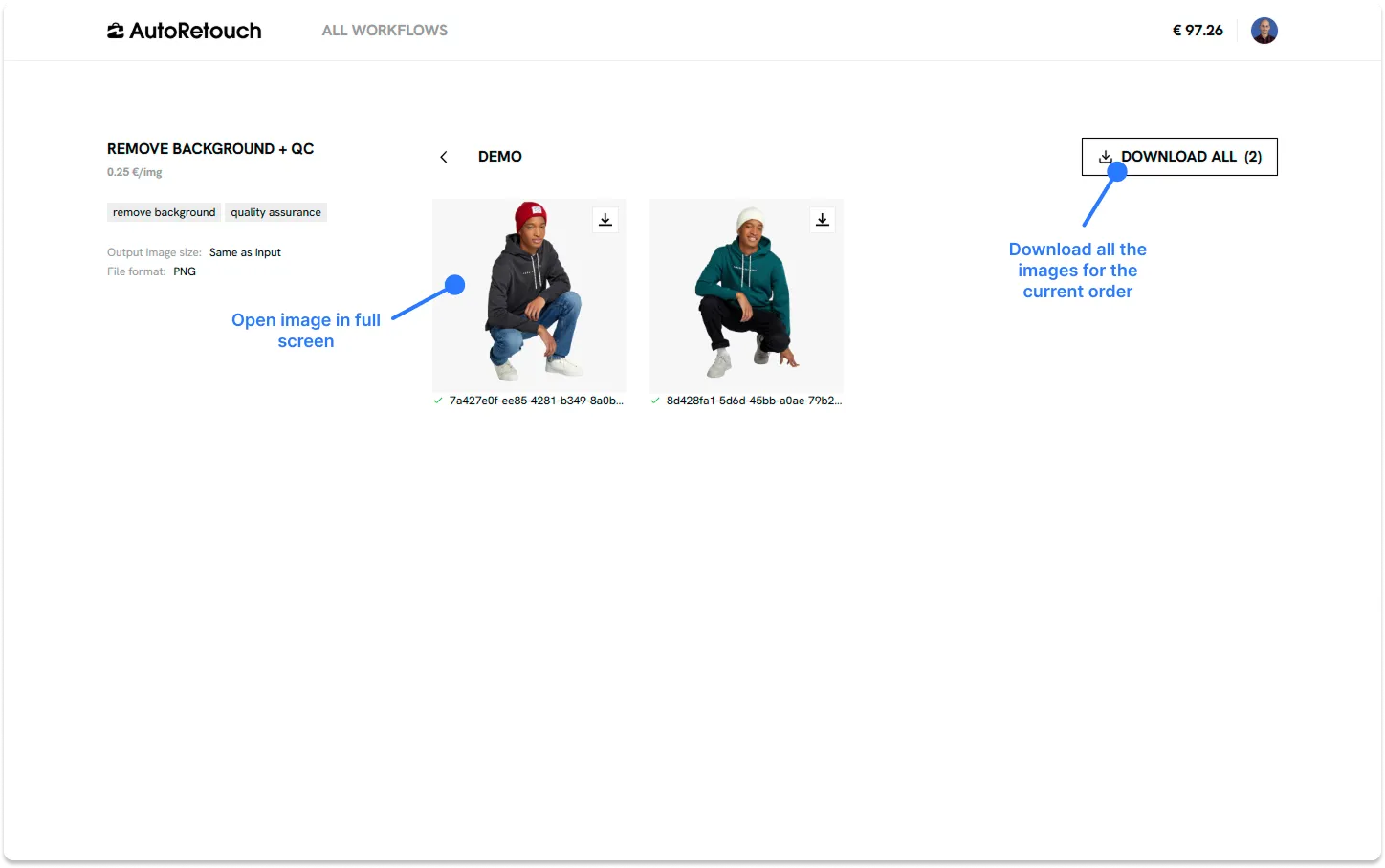
Once the images have been processed, which can take several minutes depending on the transformations applied, you’ll be able to download them by clicking on the order name, from the workflow page.
Upon clicking on an order’s name, you will see all your results, and will be able to download the images by clicking on the “Download All” button.