Results Page
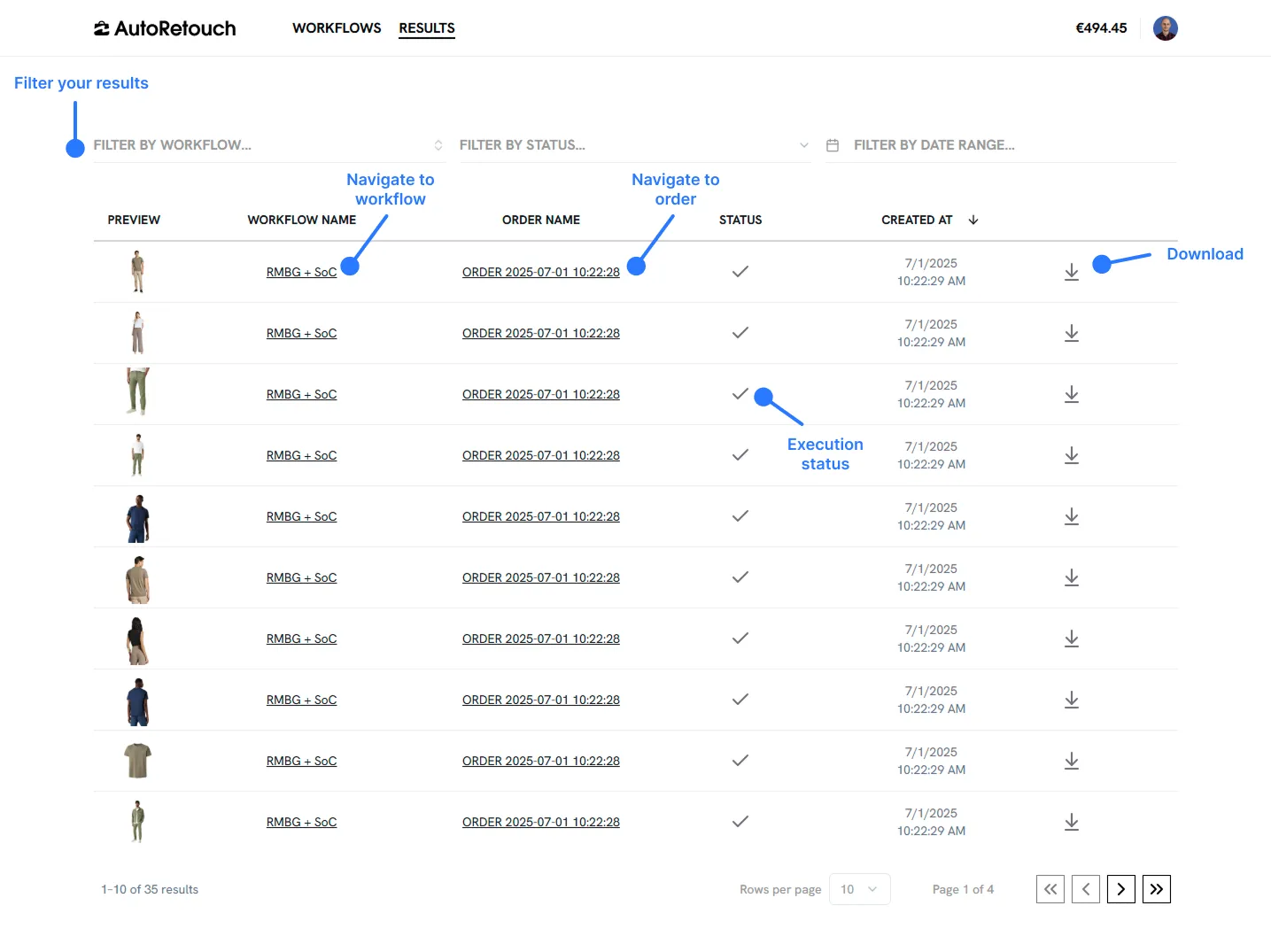
The Results page allows you to view and track every image processed through your workflows. From here, you can filter, monitor execution status, and navigate to related workflows and orders.
Accessing the Results Page
Section titled “Accessing the Results Page”Click Results in the top navigation bar to open the page.
What You’ll See
Section titled “What You’ll See”Each row on the Results page corresponds to a single image execution. The following columns are available:
- Preview: A thumbnail of the processed image.
- Workflow Name: Shows which workflow was used. You can click it to open the workflow.
- Order Name: Indicates the associated order. Clicking the order name takes you to the full order view.
- Status: Displays whether the image has been processed. A checkmark indicates success; a spinner indicates that the image is still being processed.
- Created At: Timestamp showing when the image was processed.
- Download: Currently shown for future use. Downloads from the Results page are not yet available.
Filtering Options
Section titled “Filtering Options”At the top of the page, you can apply filters to narrow down the results:
- Filter by Workflow: View only images processed through a specific workflow.
- Filter by Status: Focus on completed or still-running executions.
- Filter by Date Range: Limit results to a selected time window.
You can combine filters for more precise search results.
Navigating Results
Section titled “Navigating Results”Use the pagination controls at the bottom to move between pages. Use the Rows per page dropdown to change how many results are shown at once. Results are sorted by creation time in descending order by default.