Authentication
The AutoRetouch API uses OAuth 2.0 Device Authorization Grant for authentication. This flow is ideal for applications that run on devices without a browser or with limited input capabilities.
Auth Configuration
Section titled “Auth Configuration”| Property | Value |
|---|---|
| Auth Server | https://auth.autoretouch.com |
| Client ID | V8EkfbxtBi93cAySTVWAecEum4d6pt4J |
| Scope | offline_access |
| Audience | https://api.autoretouch.com |
Authentication Flow
Section titled “Authentication Flow”- Request a device code
- User visits the verification URL and confirms the device
- Poll for tokens (or wait for user confirmation)
- Use the access token in API requests
- Refresh the token when it expires
Request Device Code
Section titled “Request Device Code”Start the device authorization flow by requesting a device code.
POST https://auth.autoretouch.com/oauth/device/codeRequest
Section titled “Request”curl -X POST "https://auth.autoretouch.com/oauth/device/code" \ -H "Content-Type: application/x-www-form-urlencoded" \ -d "client_id=V8EkfbxtBi93cAySTVWAecEum4d6pt4J" \ -d "scope=offline_access" \ -d "audience=https://api.autoretouch.com"import requests
response = requests.post( "https://auth.autoretouch.com/oauth/device/code", data={ "client_id": "V8EkfbxtBi93cAySTVWAecEum4d6pt4J", "scope": "offline_access", "audience": "https://api.autoretouch.com" })data = response.json()device_code = data["device_code"]user_code = data["user_code"]verification_url = data["verification_uri_complete"]Response
Section titled “Response”{ "device_code": "6NeU6254VaqvBhnMy5JbB54t", "user_code": "GZXN-BHFN", "verification_uri": "https://auth.autoretouch.com/activate", "verification_uri_complete": "https://auth.autoretouch.com/activate?user_code=GZXN-BHFN", "expires_in": 900, "interval": 5}| Field | Description |
|---|---|
device_code | Code to exchange for tokens (keep secret) |
user_code | Code the user enters to confirm |
verification_uri | URL where user confirms the device |
verification_uri_complete | URL with code pre-filled |
expires_in | Seconds until the code expires (900 = 15 minutes) |
interval | Minimum seconds between polling requests |
Direct the user to verification_uri_complete to confirm the device.
Request Tokens
Section titled “Request Tokens”After the user confirms the device, exchange the device code for access and refresh tokens.
POST https://auth.autoretouch.com/oauth/tokenRequest
Section titled “Request”curl -X POST "https://auth.autoretouch.com/oauth/token" \ -H "Content-Type: application/x-www-form-urlencoded" \ -d "grant_type=urn:ietf:params:oauth:grant-type:device_code" \ -d "device_code={device_code}" \ -d "client_id=V8EkfbxtBi93cAySTVWAecEum4d6pt4J"import requests
response = requests.post( "https://auth.autoretouch.com/oauth/token", data={ "grant_type": "urn:ietf:params:oauth:grant-type:device_code", "device_code": device_code, "client_id": "V8EkfbxtBi93cAySTVWAecEum4d6pt4J" })data = response.json()access_token = data["access_token"]refresh_token = data["refresh_token"]Success Response (200)
Section titled “Success Response (200)”{ "access_token": "eyJ0eXAiOiJKV1QiLCJhbGci...", "refresh_token": "bELBlOx5prjxEMXYFM78-qsKv...", "scope": "offline_access", "expires_in": 86400, "token_type": "Bearer"}| Field | Description |
|---|---|
access_token | JWT to use in API requests (valid 24 hours) |
refresh_token | Long-lived token to get new access tokens |
expires_in | Access token lifetime in seconds |
Error Response (403)
Section titled “Error Response (403)”If the user hasn’t confirmed yet or the code is invalid:
{ "error": "invalid_grant", "error_description": "Invalid or expired device code."}Poll this endpoint at the specified interval until you receive tokens or the code expires.
Refresh Access Token
Section titled “Refresh Access Token”Access tokens expire after 24 hours. Use the refresh token to get a new access token.
POST https://auth.autoretouch.com/oauth/tokenRequest
Section titled “Request”curl -X POST "https://auth.autoretouch.com/oauth/token" \ -H "Content-Type: application/x-www-form-urlencoded" \ -d "grant_type=refresh_token" \ -d "refresh_token={refresh_token}" \ -d "client_id=V8EkfbxtBi93cAySTVWAecEum4d6pt4J"import requests
response = requests.post( "https://auth.autoretouch.com/oauth/token", data={ "grant_type": "refresh_token", "refresh_token": refresh_token, "client_id": "V8EkfbxtBi93cAySTVWAecEum4d6pt4J" })data = response.json()access_token = data["access_token"]Success Response (200)
Section titled “Success Response (200)”{ "access_token": "eyJ0eXAiOiJKV1QiLCJhbGci...", "scope": "offline_access", "expires_in": 86400, "token_type": "Bearer"}Error Response (403)
Section titled “Error Response (403)”{ "error": "invalid_grant", "error_description": "Unknown or invalid refresh token."}Revoke Refresh Token
Section titled “Revoke Refresh Token”Revoke a refresh token to disable API access for a device.
POST https://auth.autoretouch.com/oauth/revokeRequest
Section titled “Request”curl -X POST "https://auth.autoretouch.com/oauth/revoke" \ -H "Content-Type: application/json" \ -d '{ "client_id": "V8EkfbxtBi93cAySTVWAecEum4d6pt4J", "token": "{refresh_token}" }'import requests
response = requests.post( "https://auth.autoretouch.com/oauth/revoke", json={ "client_id": "V8EkfbxtBi93cAySTVWAecEum4d6pt4J", "token": refresh_token })# Returns 200 with empty body on successResponse
Section titled “Response”Returns 200 OK with an empty body on success.
Using the Access Token
Section titled “Using the Access Token”Include the access token as a Bearer token in the Authorization header for all API requests:
curl -X GET "https://api.autoretouch.com/v1/organization" \ -H "Authorization: Bearer {access_token}"import requests
headers = {"Authorization": f"Bearer {access_token}"}response = requests.get( "https://api.autoretouch.com/v1/organization", headers=headers)Create credentials from your account
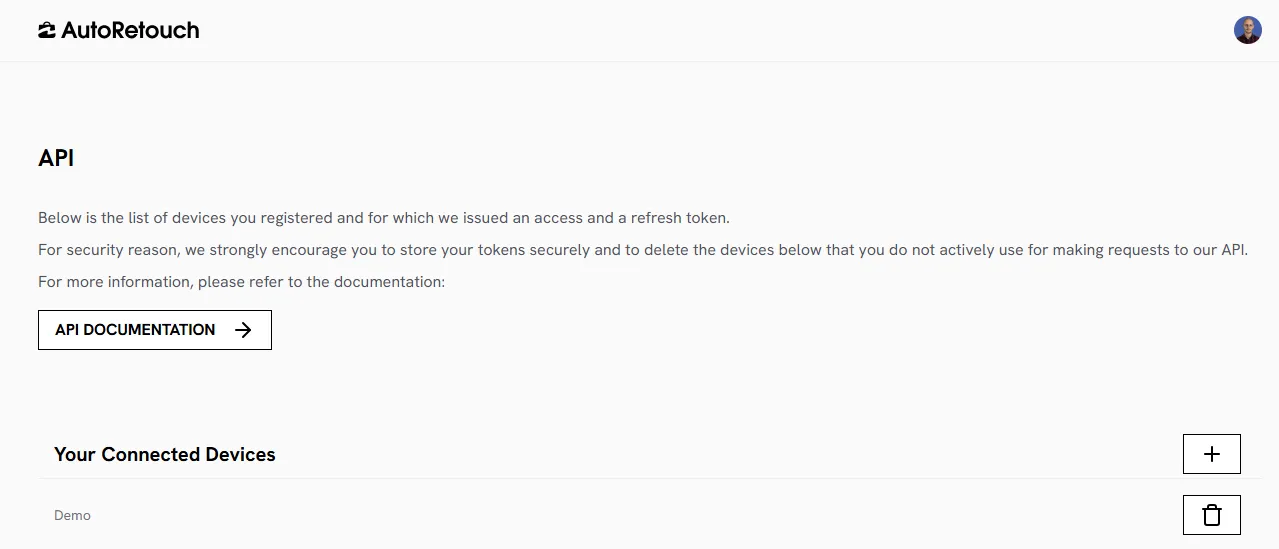
Section titled “Create credentials from your account”You can also create API credentials from your AutoRetouch account:
- Login at webapp.autoretouch.com
- Click your profile menu (top-right)
- Select “API”
- Click the ”+” button to add a new device
- Enter a device name and confirm
- Complete the device authorization flow in the popup
- Copy the refresh token (shown only once!)